
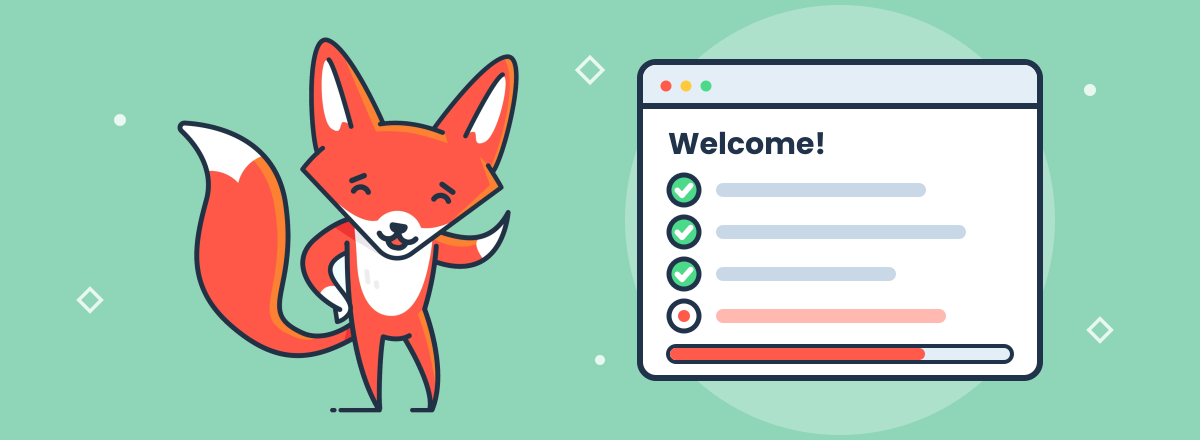
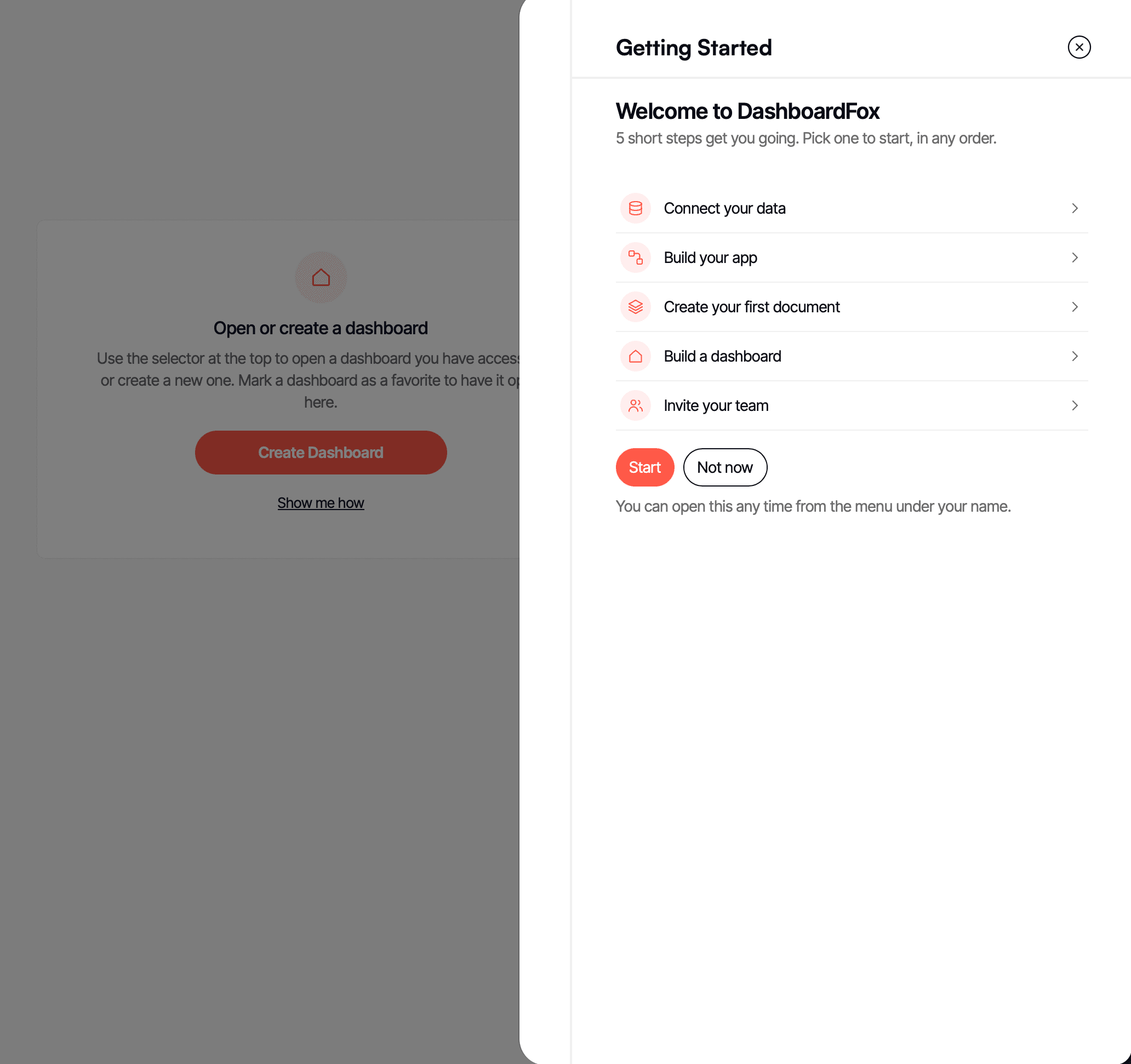
Short answer: DashboardFox now includes Getting Started, an in-product checklist with guided "Show me how" tours. Each role gets its own guide, steps check themselves off as you do the real work, and every step links to a matching Academy lesson. New sites see it at first sign-in. Sites already in use get it quietly, in the profile menu, until an administrator turns it up.
Most teams that try a BI tool don't have a BI specialist. Connecting a database is the easy part; the stall comes between "connected" and "a dashboard my team opens every day". Getting Started is built to close that gap, and to do it for every person who signs in, not only the one who set the site up.
What's new
- A guide for each role: administrators, architects, builders, and viewers.
- "Show me how" tours that run on the real screens and wait while you do each action.
- Automatic check-off: a step is done when you've actually done it.
- Academy lessons linked from each step, for when you want the full explanation.
- Helpful empty screens that name the next step and can start its tour.
- Administrator control: Full, Quiet, or Off, for the whole site or per branding policy.
A guide for each role
Administrators get "Set up your workspace", five steps from an empty workspace to something your team can use: connect your data, build your app, create your first report, build a dashboard, and invite your team. Once those are done, a "Go further" list covers visualizations, dashboard filters, email delivery, security groups, data-level security, and branding. If you plan to use AI, it also includes "Add an AI provider" and "Turn AI on for an app".
Architects get "Model your data": open a data source, add tables and joins, organize and name fields, and test the result in the builder.
Builders get "Build reports and dashboards": create a report, add a visualization, save it to the library, and put it on a dashboard.
Viewers get "Find and use reports": run a report, use a dashboard, favorite what they use, and schedule or export. This is the guide that saves you the most questions, because it reaches the people you'd otherwise have to train one at a time.
Administrators and architects can open the other guides too. A step done in one guide is credited in the others, so nobody repeats work.
"Show me how" tours
Every core step has a Show me how button. It takes you to the right screen and starts a tour that points at the next control, waits while you use it, and moves on when you have. You're building your own report with your own data, not watching a demo.
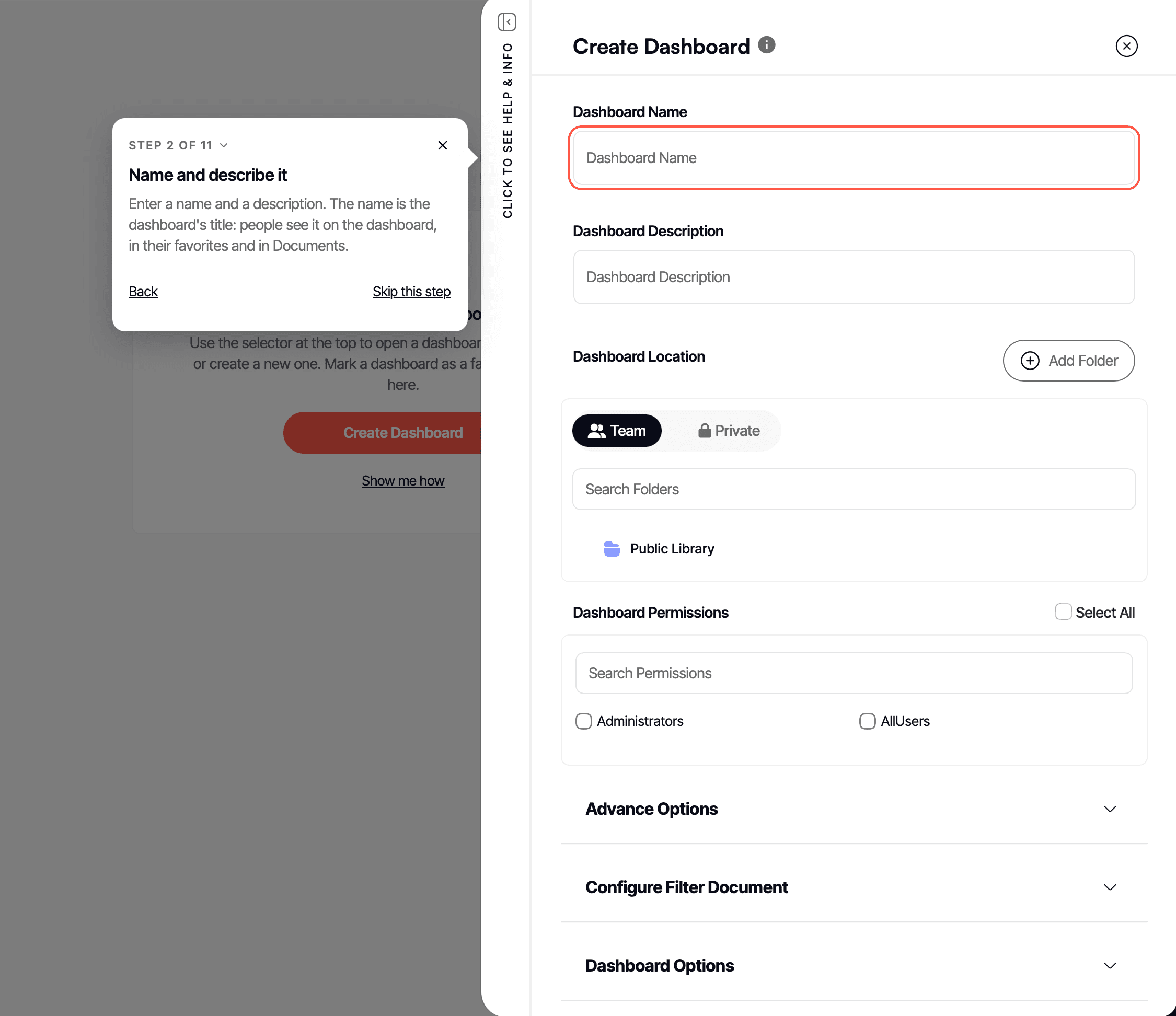
There are eleven tours today, grouped in a Tours tab under Your data, Reports, Dashboards, and Library. They range from "Build your app" and "Add a visualization" to "Add a dashboard filter" and "Schedule or export a report". Each person sees only the tours their role can complete, and a tick appears beside the ones they've finished.
Steps check themselves off
You don't have to tell Getting Started what you did. Save a report and the report step is ticked. Save a dashboard widget and the dashboard step is ticked. A save that fails ticks nothing. Progress is kept per user, and you can always mark a step as done, skip it, or undo it.
When your guide is complete, the menu item shows "Done" and then steps out of the way. The guide and every tour stay available from the profile menu.
The Academy behind every step
A tour shows you where to click. The DashboardFox Academy explains why. Steps in Getting Started carry a Learn more link to the matching lesson, such as the data connectivity overview on "Connect your data" or the row-level security lesson on "Add data-level security". Do the step with the tour, then read the lesson when you want to go deeper.
New sites vs sites already in use
Getting Started works the same on DashboardFox Cloud and on self-hosted installs. What differs is how it first appears.
| Mode | What users see | Where it's the starting point |
|---|---|---|
| Full | A welcome card at first sign-in, a Getting Started item in the main menu with progress, and a reminder of the next step | New sites |
| Quiet | Nothing opens by itself; the guide and tours are in the profile menu | Sites that already have users or their own apps |
| Off | No guide, no tours, no menu entries | Only when an administrator chooses it |
The starting mode is decided once and then kept. An administrator can change it at any time with the Getting Started option in Settings → Server Settings.
Getting Started never appears for guest users or on embedded pages.
For agencies and white-label sites
Getting Started respects your branding. It uses your product name and terms, and its buttons and highlights follow your brand color. Learn more links to the Academy are hidden by default once you rename the product, and each branding policy has a "Show Learn more links in Getting Started" switch.
Each branding policy can also choose its own mode. If you serve several clients from one site, you can give new client users the Full guide and keep it Quiet or Off for everyone else.
What's next
This is the first release of Getting Started, and we're adding to it steadily:
- More tours and more "Show me how" steps, starting with connecting data, inviting your team, and security groups.
- More Academy lessons, so every tour has a lesson behind it.
- Translations of the guide text through your phrase translations. It's in English today.
If there's a task you wish DashboardFox would walk you through, tell us. That list decides which tours we build next.
Frequently asked questions
What is Getting Started in DashboardFox?
Getting Started is an in-product checklist with guided "Show me how" tours. Each role gets its own guide, steps check themselves off as you do the real work, and every step links to a matching DashboardFox Academy lesson.
Who sees Getting Started?
Every signed-in user gets the guide for their role: administrators, architects, builders, and viewers. Progress is tracked per user. It never appears for guest users or on embedded pages.
Will Getting Started appear on my existing DashboardFox site?
On a site that's already in use, Getting Started arrives in Quiet mode: nothing opens by itself, and the guide and tours are available from the profile menu. An administrator can switch it to Full in Server Settings. New sites start in Full mode.
How do I turn Getting Started on or off?
Administrators choose Full, Quiet, or Off with the Getting Started option in Settings, under Server Settings. Each branding policy can also set its own choice, so different audiences can see different behavior.
Does Getting Started work with white-label branding?
Yes. It uses your product name and terms and follows your brand color. Learn more links to the DashboardFox Academy are hidden by default once you rename the product, and each branding policy has a switch for them.